
Lead Nurture Workflow Automation
Build trigger-based nurture journeys that email, text, wait and branch on behavior, and manage every workflow from one list.
These images are illustrations of the concept, not screenshots of the actual product.
Overview
Following up with every new lead by hand does not scale, and generic drip campaigns ignore what a lead actually does. This concept shows how the Automation module of HeadshotMarketing is designed to run nurture journeys on their own: each workflow starts from a trigger, takes actions across email and SMS, waits, and branches on how the contact responds.
The first illustration is the Automation Workflows list. Summary cards report active workflows, runs this month, emails sent and average conversion. Each workflow appears as a row with its name, a trigger chip such as form submit, tag added, a date or inactivity, an on/off toggle, a status of active, paused or draft, an execution count and when it last ran, plus a menu for further actions. Sample workflows cover a welcome series, cart abandonment, an enterprise lead nurture and re-engagement. A New Workflow button starts a fresh journey.
The second illustration opens a lead nurture workflow in the visual builder. A palette on the left offers building blocks for email, SMS, wait, condition, tag, webhook and update field. On a dotted canvas, a form-submitted trigger leads to a welcome email and then to a condition that checks whether the email was opened. The yes branch waits two days and sends a case study; the no branch sends an SMS reminder. Every step has a settings control, zoom controls adjust the canvas, and Test and Publish buttons let a marketer try the flow before it goes live.
Because workflows are meant to act on the same contacts, tags and fields as the CRM, a lead routed to nurture from the leads view could enter a journey like this one, with tag and update-field steps writing changes back to the contact record. The concept turns nurture logic into something a marketer can read, adjust and test without writing code.
What this concept shows
- Summary cards for active workflows, monthly runs, emails sent and average conversion
- Workflow list with trigger chips for form submit, tag added, date and inactivity
- On/off toggles, active, paused and draft statuses, execution counts and last run times
- Visual builder palette with email, SMS, wait, condition, tag, webhook and update field steps
- Yes and no branching on whether a contact opened an email
- Settings control on every step and canvas zoom
- Test and Publish actions for checking a flow before it runs
How it works
- Open Automation to review workflows with their triggers, statuses, executions and last runs.
- Toggle a workflow on or off, or select New Workflow to start a journey.
- In the builder, set the trigger, such as a submitted form.
- Add steps from the palette to send email or SMS, wait, apply a tag, call a webhook or update a field.
- Add a condition, such as whether an email was opened, and build out the yes and no branches.
- Configure each step through its settings, then Test the flow and Publish it.
Who it's for
- Marketing automation specialists
- Demand generation and lifecycle marketers
- E-commerce marketers running cart recovery
- Small business owners automating follow-up
Illustrations
2 illustrations of this concept. Select one to view it full size.
Automation Workflows List
This illustration shows the Automation Workflows page, with Automation highlighted in the left navigation and a New Workflow button at the top right. Four summary cards report active workflows, runs this month, emails sent and average conversion. Below, a list of rounded rows sits under column labels for workflow name, trigger, toggle, status, executions and last run. Sample workflows include a welcome series triggered by a form submission, cart abandonment and re-engagement journeys triggered when a tag is added, an enterprise lead nurture triggered by a date and another re-engagement flow triggered by inactivity. Each row has an on/off switch, a status badge reading active, paused or draft, an execution count, a relative last-run time and a menu. A faded final row hints that the list scrolls. All figures are sample data.
Visual Lead Nurture Workflow Builder
This illustration shows a lead nurture workflow open in the builder, with a breadcrumb back to Automation and Test and Publish buttons at the top right. A Workflow Builder panel has zoom controls and a vertical palette of step types: email, SMS, wait, condition, tag, webhook and update field. On the dotted canvas, a trigger node for a submitted form connects to a node that sends a welcome email, then to a condition asking whether the email was opened. Labeled yes and no connectors split the flow: the yes path waits two days and then sends a case study email, while the no path sends an SMS reminder. Every node carries a settings gear for configuring it. The design makes the journey's logic readable at a glance and lets a marketer test it before publishing.
Topics
- lead nurturing automation
- marketing automation workflow builder
- visual workflow builder
- drip campaign automation
- email and SMS automation
- trigger-based workflows
- cart abandonment workflow
- re-engagement campaign
- welcome email series
- if/then email branching
Related concepts
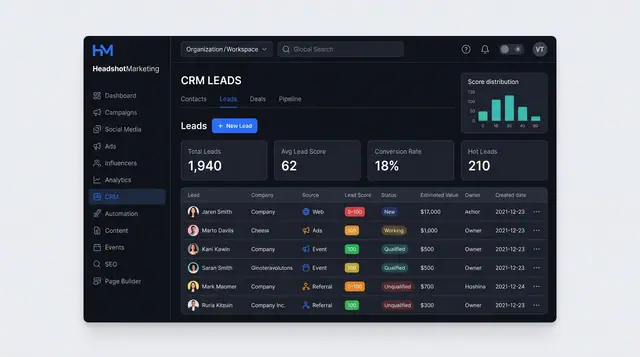
Lead Capture and Explainable Scoring
See where every lead came from, how it scores and which signals moved the score, then route or assign it.
2 illustrations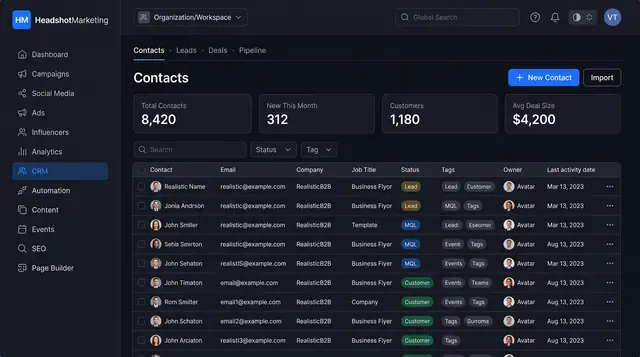
Contacts and Sales Pipeline
Keep every contact in one searchable table and follow deals across a visual pipeline from first lead to closed won.
2 illustrations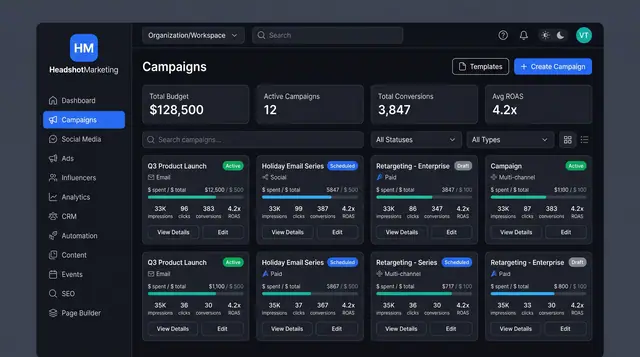
Multi-Channel Campaign Launch
Browse campaigns, start from a template, brief one launch across email, social, paid and events, then track spend and ROAS.
4 illustrations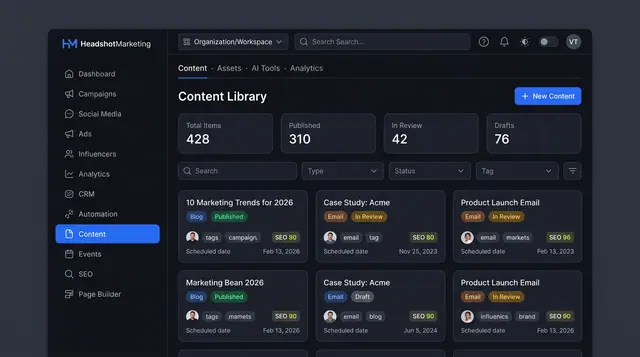
Content Library and Editor
One library for blog posts, emails and brand assets, with an editor that scores SEO and offers AI help before you publish.
3 illustrations
Part of industry solutions
This concept appears in cross-product solutions on burdenoff.com — see how it works alongside other Burdenoff products to solve a problem in that industry.

Industry solution
Retail & E-commerce
Runs the cart-abandonment journey that waits, emails, texts and branches on behavior, listed with its trigger, status and run count.
See the solution(opens in a new tab)
Industry solution
Software & SaaS
Runs trigger-based journeys, including re-engagement on inactivity, so an approved retention play reaches the account's admins.
See the solution(opens in a new tab)
Industry solution
Creator Economy
Runs the win-back journey for members going quiet, triggered by inactivity and held as a draft until the community lead approves it.
See the solution(opens in a new tab)
Industry solution
Professional Bodies & Trade Associations
Runs the renewal journey for members whose invoice is correct, started and ended by tags, so reminders stop once a member pays.
See the solution(opens in a new tab)
Industry solution
Beauty & Personal Care
Where approved member reminders and card-update requests run as text and email journeys, each switched on or paused with its last run in view.
See the solution(opens in a new tab)