
Content Library and Editor
One library for blog posts, emails and brand assets, with an editor that scores SEO and offers AI help before you publish.
These images are illustrations of the concept, not screenshots of the actual product.
Overview
Marketing content tends to scatter: blog drafts in one tool, email copy in another, logos and product photos in shared drives, and nobody quite sure which version was approved. The Content Library and Editor concept for HeadshotMarketing brings those pieces into one module, so the posts, emails and brand assets that campaigns draw on are created, reviewed and stored in a single place.
The library view opens with summary cards for total items, published pieces, items in review and drafts, followed by a search box and filters for type, status and tag. Each piece appears as a card showing its title, a type badge such as Blog or Email, a status badge such as Published, In Review or Draft, the author's avatar, tag chips, an SEO score and a scheduled date. A New Content button starts a fresh piece.
The editor is designed as a two-column workspace. On the left, a title field sits above a rich-text body with formatting, heading, list, link, image, quote and code controls. On the right, a Settings panel captures the content type, status, URL slug, tags, a link to the campaign the piece supports and a publish schedule. Below it, an SEO card scores the draft out of 100 and holds the meta title, meta description and a search-snippet preview, while an AI Assist card offers one-click Improve, Summarize, Expand and Generate meta actions. Save Draft and Publish close the flow.
The asset library completes the picture. A folder tree groups files into Brand, Campaigns, Social and Product Photos, and a grid of tiles previews product shots, marketing graphics, logos and videos with their format, file size and dimensions. Search, a type filter, a sort order and a grid or list toggle help locate the right file, and an Upload button adds new ones.
Because content lives in the same workspace as campaigns, social scheduling and SEO tracking, the concept envisions each piece carrying its campaign link, tags and search readiness with it, ready to be reused across channels instead of rebuilt for each one.
What this concept shows
- Summary cards counting total, published, in-review and draft content
- Content cards with type and status badges, author, tags, SEO score and scheduled date
- Search plus type, status and tag filters across the whole library
- Rich-text editor with headings, lists, links, images, quotes and code
- Settings panel for content type, status, slug, tags, campaign link and publish schedule
- Inline SEO score with meta title, meta description and a search-snippet preview
- AI Assist actions to improve, summarize, expand or generate meta text
- Folder-based asset library with previews, file details, sorting and upload
How it works
- Open Content from the left navigation to see library totals and every piece as a card.
- Search or filter by type, status or tag to find an existing piece or check what is waiting in review.
- Select New Content to open the editor, then write the title and body with the formatting toolbar.
- Set the content type, status, slug, tags, campaign link and publish schedule in the Settings panel.
- Check the SEO score, complete the meta fields, and use AI Assist to improve, summarize, expand or generate meta text.
- Use the Assets tab to browse brand folders, preview files and upload new logos, photos or videos.
- Save a draft, or publish the piece when it is ready.
Who it's for
- Content marketers and writers
- Marketing managers who review and approve content
- SEO specialists
- Brand and design teams
- Small marketing teams
Illustrations
3 illustrations of this concept. Select one to view it full size.
Content Library Overview
This illustration shows the Content Library with Content selected in the left navigation and a tab strip for Content, Assets, AI Tools and Analytics. The top bar holds an organization and workspace switcher, search, help, notifications, a theme toggle and the user avatar. Four summary cards count total items, published pieces, items in review and drafts, using sample figures. Beneath them sit a search field, dropdowns for type, status and tag, and a further filter button. A three-column grid of content cards follows. Each card shows a sample title such as a trends article, a case study or a product launch email, a type badge for Blog or Email, a status badge for Published, In Review or Draft, the author's avatar, tag chips, an SEO score badge and a scheduled date. A New Content button sits at the top right.
Article Editor with SEO and AI Assist
This illustration shows a new article open in the editor, reached through a Content breadcrumb. The left column holds a title field with a sample trends headline and a rich-text area whose toolbar offers bold, italic, underline, a heading menu, bulleted and numbered lists, link, image, quote and code controls; the body contains placeholder copy with a subheading and a bullet list. A right-hand panel has Settings, SEO and AI Assist tabs. The Settings card collects content type, status, slug, removable tag chips, a campaign link and a publish schedule. Below it, an SEO card shows a sample score out of 100 with meta title, meta description and a search-snippet preview, and an AI Assist card lists Improve, Summarize, Expand and Generate meta actions. Save Draft and Publish buttons anchor the footer.
Brand Asset Library
This illustration shows the Asset Library under the Assets tab of the Content module. A folder tree on the left lists All Assets, Brand, Campaigns, Social and Product Photos, with All Assets selected. The main area has a search field, a type filter, a sort control and a toggle between grid and list views, and an Upload button sits beside the page title. Assets appear as a five-column grid of tiles: product photography, social and marketing graphics, logo variations and video clips marked with a play overlay. Each tile shows a thumbnail, a name, a format such as JPG, PNG or MP4 and, where given, the file size and dimensions, along with a selection checkbox on each tile. The design gives brand and campaign teams a single, searchable shelf of visuals to reuse.
Topics
- marketing content library
- content management for marketers
- blog and email content editor
- SEO content editor
- brand asset library
- digital asset management for marketing
- content review and approval
- content publishing schedule
- AI writing assist in editor
- reuse marketing content across channels
Related concepts
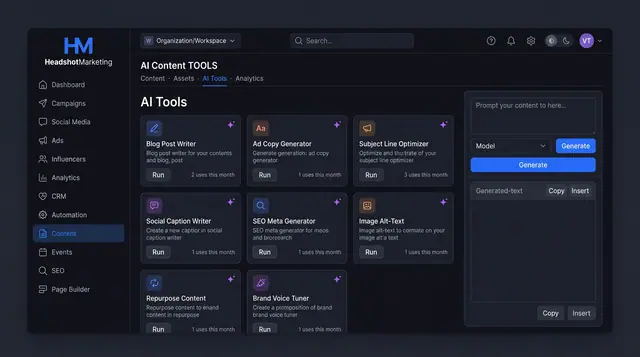
AI Content Tools and Usage Ledger
Run purpose-built AI writers for blogs, ads, emails and SEO, then see every run's tokens, cost and status in one ledger.
3 illustrations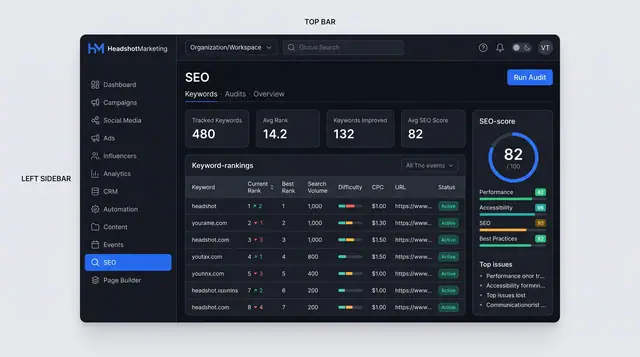
SEO Keyword Tracking and Site Audits
Track keyword rankings over time and audit any public page for SEO, performance and accessibility issues with clear fixes.
2 illustrations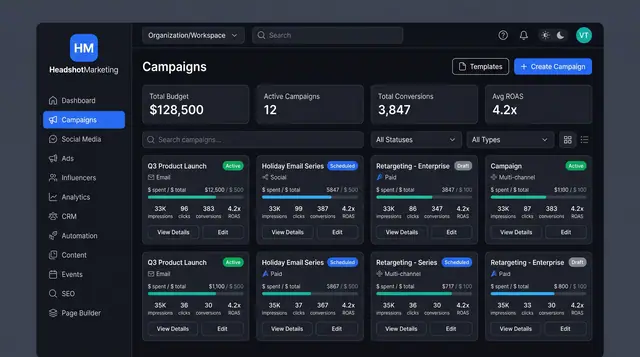
Multi-Channel Campaign Launch
Browse campaigns, start from a template, brief one launch across email, social, paid and events, then track spend and ROAS.
4 illustrations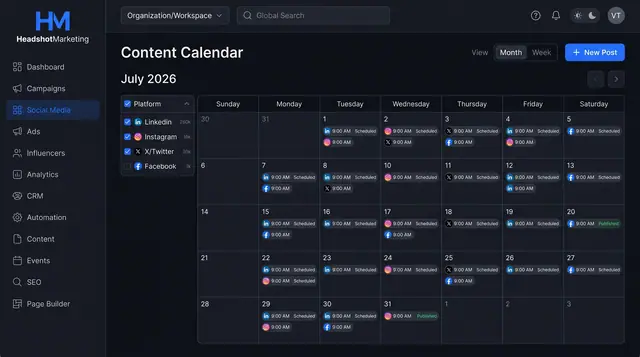
Social Scheduling and Publishing
Plan posts on a shared calendar, compose once for several networks with a phone preview, and keep every connected account healthy.
3 illustrations