
Multi-Channel Campaign Launch
Browse campaigns, start from a template, brief one launch across email, social, paid and events, then track spend and ROAS.
These images are illustrations of the concept, not screenshots of the actual product.
Overview
A campaign is the central unit of work in HeadshotMarketing: one coordinated effort with a goal, a budget, a schedule and a set of channels. This concept illustrates the full arc of a campaign across four screens, from the list of everything in flight, through a template gallery and a creation form, to a detail page that tracks a single launch.
Launching the same idea across email, social, paid ads and events usually means building it four times in four tools, each with its own budget line and its own report. The team loses sight of total spend and cannot compare channels fairly. The design keeps one campaign record as the brief for every channel, so budget, objectives and results stay attached to the same thing.
The Campaigns page opens with summary cards for total budget, active campaigns, total conversions and average ROAS, followed by a filterable grid of campaign cards. Each card shows a status badge (Active, Scheduled or Draft), the channel type, a spend-against-budget bar and impressions, clicks, conversions and ROAS. A Templates button leads to a gallery of starting points such as a product launch sequence, a webinar promotion, abandoned cart recovery and re-engagement, filtered by Email, Social, Paid, Multi-channel or Event. The Create Campaign form captures name, type, description, objectives, channels, budget, dates and KPIs, with a live Campaign Summary beside it and Save Draft or Create Campaign in the footer.
Once a campaign is running, its detail page shows spend against budget, impressions, clicks, conversions and ROAS, a performance-over-time chart of spend and conversions, a channel breakdown, the campaign's details and the creative assets attached to it, with Edit and Pause actions in the header. Campaign results feed the home dashboard and analytics, and the channels chosen here connect to the social, ads and events modules. All campaign names and figures in the illustrations are sample data.
What this concept shows
- Campaign summary cards for total budget, active campaigns, total conversions and average ROAS
- A searchable campaign grid with status and type filters and a grid or list view toggle
- Campaign cards with Active, Scheduled and Draft badges, a spend-against-budget bar and impressions, clicks, conversions and ROAS
- A template gallery filtered by Email, Social, Paid, Multi-channel and Event, with usage counts and Use Template actions
- A create form with objective chips, a multi-select channel picker, budget, dates and KPI fields
- A live Campaign Summary panel that mirrors type, channels, budget and timeline as the form is filled in
- A campaign detail page with a dual-axis spend and conversions chart and a stacked channel breakdown
- Edit and Pause controls and a table of the creative assets attached to the campaign
How it works
- Open Campaigns to review budget, conversions and ROAS across everything in flight, filtering by status or type.
- Choose Templates to browse starting points by channel and pick one with Use Template, or start from scratch with Create Campaign.
- Name the campaign, choose its type, write a description and select objectives such as awareness, conversions or engagement.
- Add the channels, such as email, social, paid ads and events, set the budget, dates and KPIs, and check the Campaign Summary.
- Save a draft or create the campaign.
- Open the campaign's detail page to track spend against budget, performance over time and results by channel, and edit or pause it as needed.
Who it's for
- Campaign and marketing managers
- Demand-generation and growth teams
- Marketing operations specialists
- Agency teams running launches for clients
Illustrations
4 illustrations of this concept. Select one to view it full size.
Campaigns Overview Grid
This illustration shows the Campaigns page with Campaigns active in the sidebar. Templates and Create Campaign buttons sit beside the page title, and four summary cards report total budget, active campaigns, total conversions and average ROAS as sample figures. A search field, All Statuses and All Types dropdowns and a grid or list view toggle filter the collection. Below, campaign cards are laid out in a grid. Each card names the campaign, shows a status badge such as Active, Scheduled or Draft, labels the channel type (Email, Social, Paid or Multi-channel), and draws a progress bar of amount spent against total budget. A row of metrics shows impressions, clicks, conversions and ROAS, with View Details and Edit buttons at the bottom. The screen demonstrates how the design lets a team compare campaigns across channels in one place.
Campaign Template Gallery
This illustration shows the Campaign Templates page, reached through a Back to Campaigns link. A search field sits beside filter chips for All, Email, Social, Paid, Multi-channel and Event. Templates appear as cards with an illustrated thumbnail, a name, a channel tag and a short summary. The sample set includes Product Launch Sequence and Newsletter Nurture as email templates, Webinar Promotion, Abandoned Cart Recovery and Black Friday Blitz as social templates, and a Re-engagement email template. Each card shows how many times the template has been used, as a sample count, and a prominent Use Template button. The screen demonstrates how the concept lets a marketer begin a campaign from a proven structure rather than a blank form, and how a team's most-used playbooks could be reused across launches.
Create Campaign Form
This illustration shows the Create Campaign page, reached from a Campaigns / New Campaign breadcrumb. The main form card asks for a campaign name and a campaign type, filled here with a sample Q4 multi-channel launch and Multi-channel selected, followed by a free-text description. Objectives appear as selectable chips for Awareness, Conversions and Engagement. A Channels field holds removable tags for Email, Social, Paid Ads and Events, with controls to clear the list or add more. Budget, Start Date and End Date fields share one row, with KPI and goal fields below. On the right, a Campaign Summary card mirrors the choices as they are made: type, channels, budget and timeline. A footer action bar offers Cancel, Save Draft and Create Campaign. The screen demonstrates how the design turns one brief into a campaign that spans several channels.
Campaign Detail and Performance
This illustration shows the detail page for a single campaign, a sample Q3 product launch marked with an Active badge, with Edit and Pause buttons in the header. Five KPI cards report spend against budget with a progress bar, impressions, clicks, conversions and ROAS. A Performance over time chart plots spend and conversions on two axes across a run of days. Below it, a Channel breakdown shows stacked horizontal bars for Email, Social, Paid and Events. A Campaign details panel on the right lists type, budget, dates, objectives and target audience. At the bottom, a Campaign assets table lists the creative attached to the campaign, with edit and more-actions controls on each row. All values are sample data. The screen demonstrates how the concept keeps a launch's budget, results and creative together once it is running.
Topics
- multi-channel campaign management
- campaign launch planning
- marketing campaign templates
- campaign budget tracking
- campaign ROAS tracking
- cross-channel marketing campaign
- email, social and paid ads campaign
- campaign performance dashboard
- product launch campaign template
Related concepts
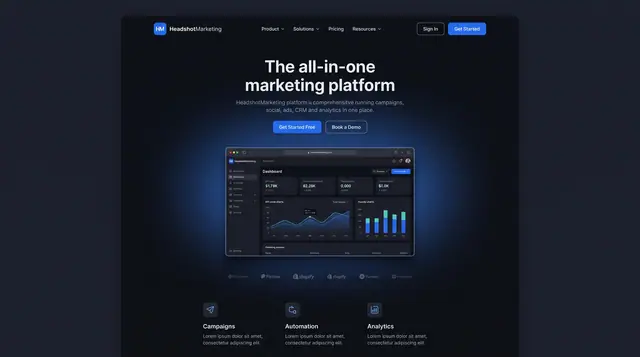
All-in-One Marketing Command Center
One front door and one home dashboard for revenue, ROAS, funnel stages and channel performance across all your marketing.
2 illustrations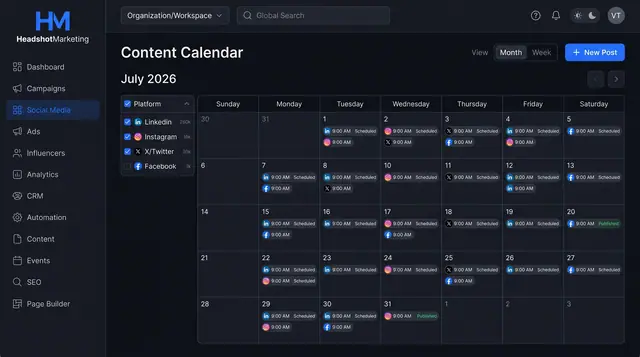
Social Scheduling and Publishing
Plan posts on a shared calendar, compose once for several networks with a phone preview, and keep every connected account healthy.
3 illustrations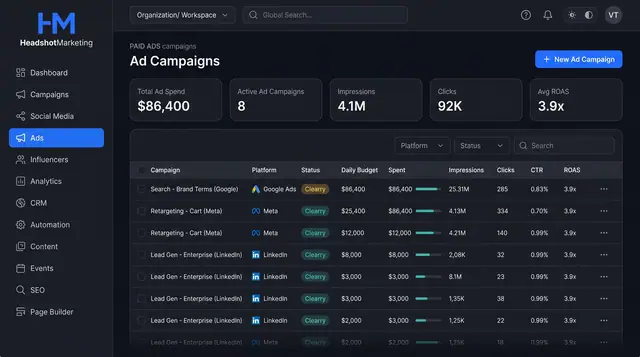
Paid Ad Campaigns and Audiences
Run Google, Meta, LinkedIn and TikTok campaigns from one table, set them up in a guided wizard and reuse saved audiences.
3 illustrations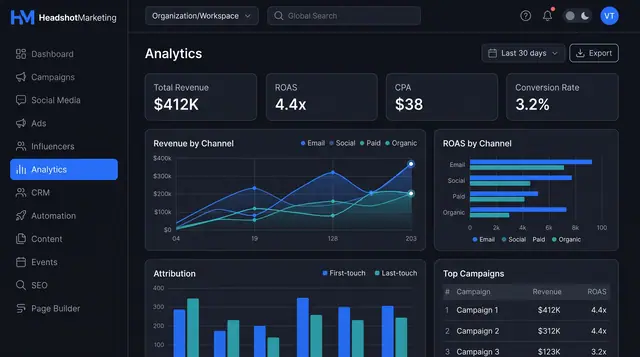
Attribution Analytics and Reports
Compare revenue and ROAS by channel, weigh first- against last-touch credit, then turn the view into a report you can schedule and share.
2 illustrations
Part of industry solutions
This concept appears in cross-product solutions on burdenoff.com — see how it works alongside other Burdenoff products to solve a problem in that industry.

Industry solution
Creator Economy
Briefs the drop as one campaign across social posts, email and the waitlist page, with each post designed to publish at its planned minute.
See the solution(opens in a new tab)
Industry solution
Fashion & Lifestyle
Plans the launch email, social posts and paid ads as one campaign, so each touch can be checked against the drop time before it goes out.
See the solution(opens in a new tab)
Industry solution
Wholesale & Distribution
Runs co-op fund reminders, program news and training invitations to dealers as one campaign across channels, with results tracked per campaign.
See the solution(opens in a new tab)